Securing the SAP Cloud Connector involves a multi-layered approach, including network segmentation, robust user authentication, end-to-end encryption, diligent logging, and a strict patching schedule. Since the Connector is an internet-facing component with access to critical on-premise systems, hardening it is essential for protecting hybrid SAP landscapes from targeted attacks.
The SAP Cloud Connector is a reverse proxy agent that provides a secure link between SAP Business Technology Platform (BTP) applications and on-premise SAP systems. Because it is an external-facing component, it must be deployed correctly to avoid exposing internal systems. This involves placing it in a DMZ, using dedicated hardware with encrypted drives, and replacing default credentials with a centralized, policy-driven authentication system like LDAP. Furthermore, all data connections should be encrypted, audit logs must be actively monitored, and the software must be patched regularly, as SAP only supports each version for 12 months. Following these best practices ensures the Connector serves as a secure bridge rather than an attack vector.
Key Takeaways
- Position the Cloud Connector in a DMZ on a dedicated, encrypted server.
- Replace the default file-based Administrator user with LDAP-based authentication for granular control.
- Enforce encrypted connections such as HTTPS and RFC with SNC for all traffic.
- Replace the default self-signed UI certificate with one from a trusted Certificate Authority (CA).
- Upgrade the Connector regularly, as each version is only supported by SAP for 12 months.
- Set the audit log level to at least “SECURITY” and monitor logs for unauthorized changes.
What is the SAP Cloud Connector?
The SAP Cloud Connector is an agent that links SAP BTP applications with on-premise SAP systems like S/4HANA. It functions as a reverse proxy, establishing a secure tunnel from the on-premise network to the cloud without requiring you to open inbound firewall ports. This allows BTP services to securely consume data from internal systems via HTTP, RFC, or direct database connections. All permitted connections are managed within the Connector, simplifying firewall rulesets.
How Should the Cloud Connector be Deployed?
Proper deployment focuses on network isolation and operating system hardening. The Connector should be installed on a dedicated server within a Demilitarized Zone (DMZ). This segmentation protects internal SAP systems if the Cloud Connector host is ever compromised.
For further protection, it is recommended to enable hard-drive encryption for the server to safeguard sensitive configuration data. Access to the host at the operating system level should be highly restricted, and OS auditing should be enabled to monitor file operations, especially for the Secure Storage in the File System (SSFS), which stores encryption keys. It is also a best practice to use separate Cloud Connector instances for productive and non-productive BTP subaccounts.
How Should User Access Be Managed?
The Cloud Connector is delivered with a single, file-based “Administrator” user that has full administrative rights and a well-known default password. This shared account should be avoided. Instead, you should configure LDAP-based authentication. This enables support for multiple, named users, allows for granular access control with display-only roles, and provides clear traceability for all user actions. It is critical to monitor the Administrator account to ensure its password is not reverted to the default, which could lead to a full compromise of the Connector.
What Are the Best Practices for Connection Security?
All connections flowing through the Cloud Connector must be authenticated and encrypted. While connections from SAP BTP to the Connector are SSL-encrypted by default, you must also secure the link from the Connector to your backend systems. Use HTTPS and RFC with SNC (Secure Network Communication) instead of their unencrypted counterparts, HTTP and RFC.
| Protocol | Recommended | Reason |
|---|---|---|
| HTTPS | Yes | Encrypts HTTP data in transit, protecting sensitive information. |
| HTTP | No | Transmits data in plaintext, which can be easily intercepted. |
| RFC with SNC | Yes | Provides authentication and encryption for Remote Function Calls. |
| RFC | No | Lacks encryption by default, exposing business data. |
Additionally, apply the principle of least privilege for all technical users, ensuring they do not have administrative rights. Use whitelisting to restrict access to only the specific BTP applications and backend resources that are absolutely required.
How Should Certificates and Ciphers Be Handled?
The default self-signed X.509 certificate for the Connector’s administration UI should be replaced with a certificate issued by a trusted Certificate Authority (CA). This prevents browser warnings and ensures administrators are connecting to the legitimate server. For UI certificates, only support strong TLS ciphers of SHA256 bit length or greater, and disable support for less secure ciphers in the Connector’s configuration.
What Are the Recommended Settings for Auditing and Logging?
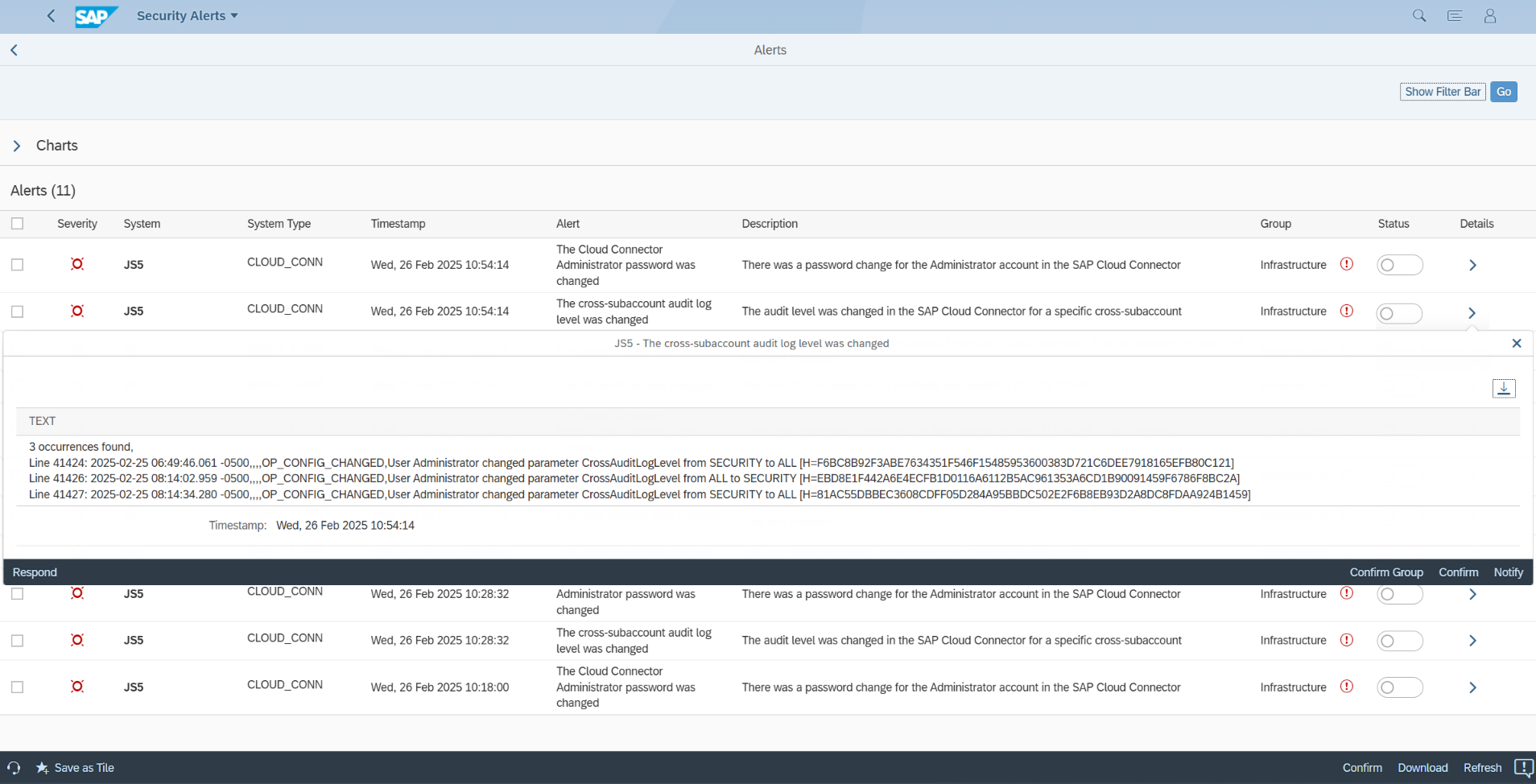
The audit log is a critical tool for monitoring security-relevant events. The log level should be set to SECURITY (the default) or ALL. It should never be set to OFF. The “SECURITY” setting logs blocked requests and configuration changes, while “ALL” also logs every successful connection. Logs are stored in the file system, and automatic cleanup can be configured to manage older files. The Cloud Connector includes a script to verify the integrity of these logs to protect against tampering.
How Can You Securely Manage Tracing?
Activating HTTP and RFC traces can expose sensitive data like passwords to administrators. To mitigate this risk, you can enforce a two-person rule for activating a trace on Linux hosts. This is done by creating a specific file (writeHexDump) in the configuration directory with an owner different from the Connector’s OS user. An administrator can then only activate a trace after this separate user modifies the file to grant permission.
Why Is Regular Patching Critical?
SAP supports each version of the Cloud Connector for only 12 months. Therefore, the Connector must be part of a regular upgrade and patching schedule. SAP frequently releases security notes to address vulnerabilities, such as the critical issues covered in Hot News note 2696233, which required upgrading to version 2.11.3 or higher. Failure to patch leaves the Connector exposed to known exploits.
How Can You Automate Cloud Connector Security?
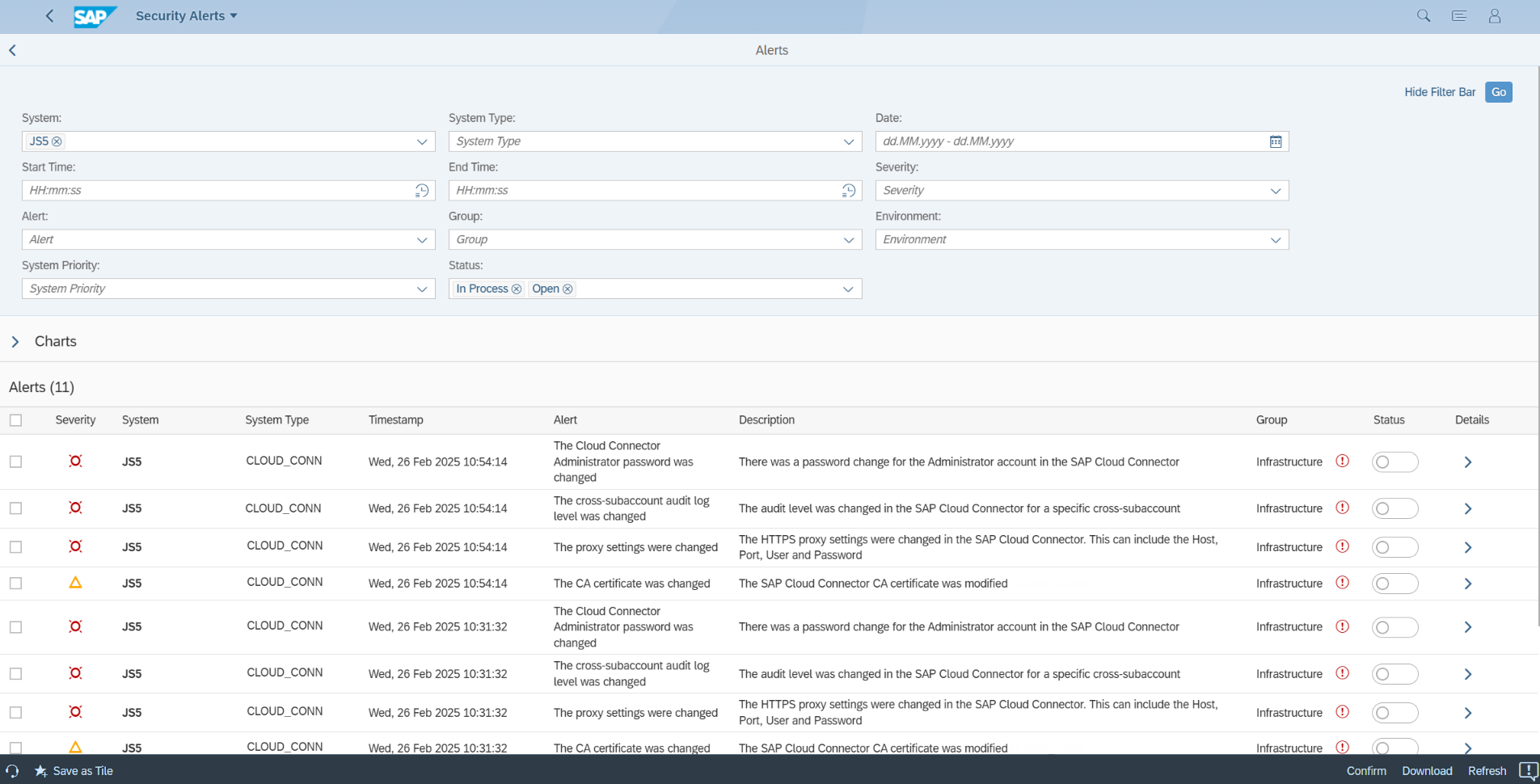
Tools like the Cybersecurity Extension for SAP can help automate the security management of the Cloud Connector. Such solutions can automatically scan for security misconfigurations, monitor the patch level to ensure the Connector is up-to-date, and continuously analyze audit logs to alert on security incidents like password changes, trace activation, and modifications to connected systems.
Frequently Asked Questions (FAQ)
Q: Where should the SAP Cloud Connector be installed?
A: It should be installed on a dedicated server within a DMZ. This network segmentation is crucial to protect your internal SAP systems in the event the external-facing Cloud Connector is compromised.
Q: What is wrong with the default Administrator user?
A: The default Administrator user is a shared account that comes with a well-known default password. It lacks traceability and proper access control. It is strongly recommended to configure LDAP-based authentication to create multiple, named users with granular permissions.
Q: How often should the SAP Cloud Connector be updated?
A: The Cloud Connector should be upgraded regularly. Each version is only supported by SAP for 12 months, and SAP frequently releases security notes that require patching to protect against new vulnerabilities.