
Now on SAP BTP: Access the Cybersecurity Extension for SAP on SAP Build Work Zone
The Cybersecurity Extension for SAP provides an SAP Fiori user experience that is usually deployed using the embedded Fiori model. The embedded model combines backend and frontend components in the same system. The model reduces landscape complexity, removes external communication for service calls, and can improve response times and stability. From an operations perspective, the embedded model usually means fewer systems to maintain, monitor, and secure. It also simplifies lifecycle management, because Fiori components are deployed together with the backend environment in the same system instead of being maintained on a separate hub.
The downside of the embedded model is that frontend applications are constrained by the limitations of backend systems. This can hold back innovation and the adoption of new capabilities in SAP Fiori applications. For example, the use of Horizon themes in SAP Fiori for a more consistent, unified user experience aligned with SAP cloud services is only possible with higher versions of SAPUI5. Solutions such as ECC cannot support Horizon themes with the embedded model.
SAP BTP overcomes the limitations of the embedded model by providing a separate cloud-based platform for Fiori applications that is not constrained by backend SAP systems. This not only supports improvements for the user experience, it also aligns with SAP’s strategy for a clean core by moving customizations from SAP systems to cloud extensions. A clean core leads to more stable SAP environments that are easier to maintain and upgrade.
Deploying Fiori applications to SAP BTP also enables organizations to benefit from services available in SAP AI Core and Generative AI Hub for AI-driven analysis, predictive capabilities, and workflows. This includes capabilities such as intelligent summaries, faster identification of unusual activity, personalized recommendations, and more intuitive, conversational user experiences.
In addition to the ability to deploy directly to SAP systems using the embedded approach, the Cybersecurity Extension for SAP can now also be deployed to SAP Build Work Zone running in the SAP BTP Cloud Foundry environment. The steps are summarized below and typically take around 45 minutes to perform.
Preparation
Prepare your SAP BTP landscape. Start by creating or confirming the subaccount in SAP BTP Cockpit. In the global account, choose Create, provide an account name, select the appropriate region, and finalize creation. Once the subaccount is created, complete the mandatory configuration. First, verify the Cloud Connector connection is properly attached to the subaccount and the connection status shows as established. Next, confirm a destination named backend is present. Principal Propagation is recommended as the authentication method for a trusted setup between ABAP systems and SAP BTP. Then, ensure your Cloud Foundry environment is provisioned. Create the Cloud Foundry instance (if needed) and create at least one space for deployments. Finally, validate entitlements and subscriptions for SAP Build Work Zone. At the global account level, assign the Work Zone entitlement to the target subaccount, then create (or confirm) an active subscription. As a last prep step, assign the required admin role to the operator who will configure the launchpad. For example, the Launchpad_Admin role collection.
Installation
The Cybersecurity Extension for SAP is delivered as an .mtar archive and is deployed via Cloud Foundry, so your workstation needs the right tools. Install the SAP (Cloud Foundry) CLI, then add the HTML5 applications repository plugin.
Deploy the package to the subaccount. Move the provided .mtar file into a working folder and open a command line in that directory. Log in to the correct Cloud Foundry org/space using cf login, following the prompts for credentials and selecting the target space. With the session established, deploy the archive using cf deploy. When deployment completes, confirm the HTML5 apps were created by running cf html5-list. For a second confirmation path, open SAP BTP Cockpit, navigate into the subaccount, and check the HTML5 Applications area to see the deployed artifacts reflected in the UI.
Configuration
In the subaccount, open the SAP Build Work Zone subscription and launch the application. If no site exists yet, create one from the Work Zone entry point. Then update the default content channel (HTML5) in Channel Manager. Next, bring in the solution content. The fastest path is importing the provided L7S content .zip via Content Manager. After the import, you should see the required bundle of objects (apps, plus a group, page, space, role, and catalog).
Assign access for required users. Back in the subaccount, assign the L7S role collection to the intended business users. Then, in the Work Zone Site Directory, confirm the site’s role assignment includes the expected role. Open the site and logon with a user who has the L7S role. Enabling multifactor authentication (MFA) for BTP users is recommended. This can be performed using SAP Cloud Identity Services. The Cybersecurity Extension for SAP will be available in the launchpad once you logon. See below.
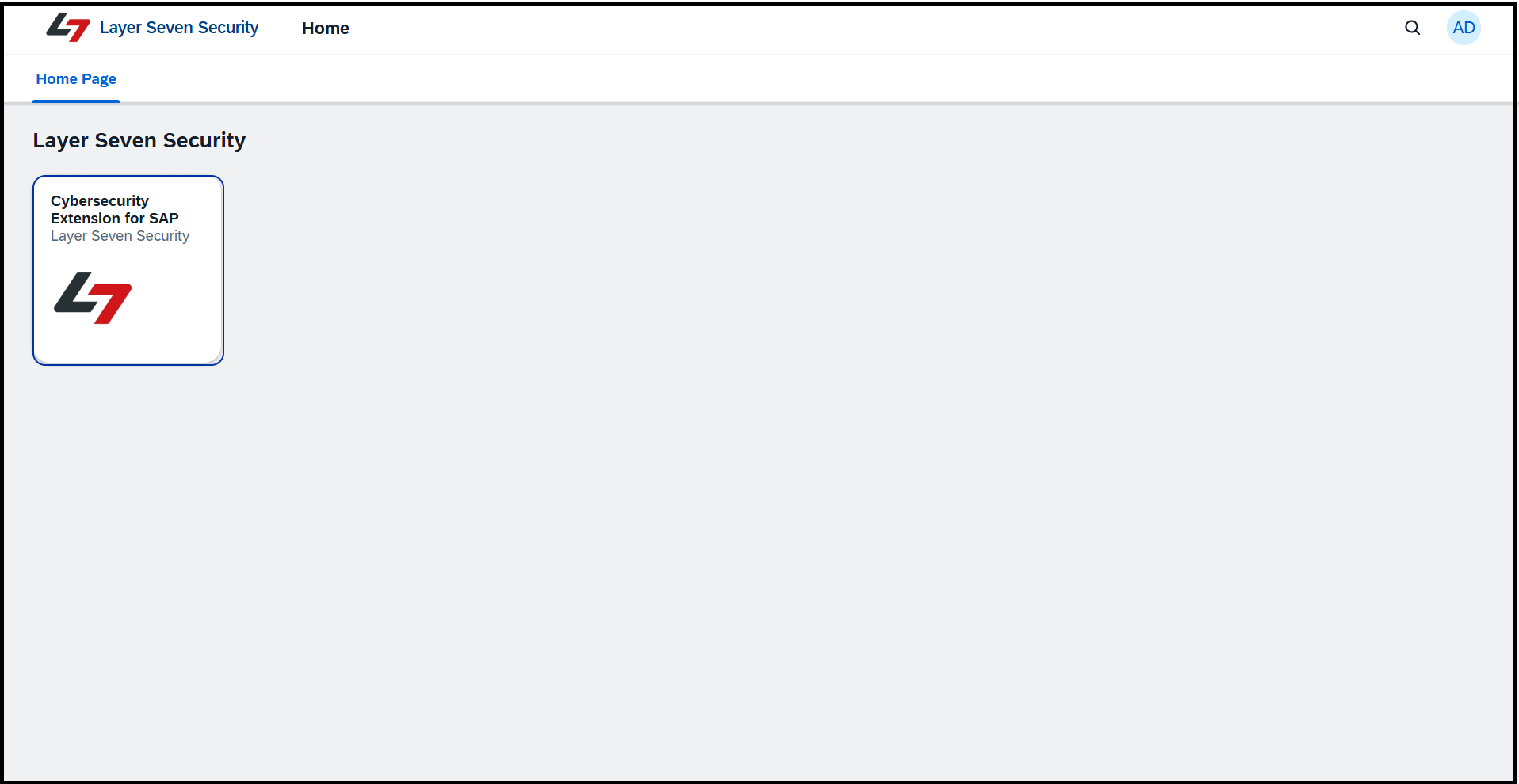
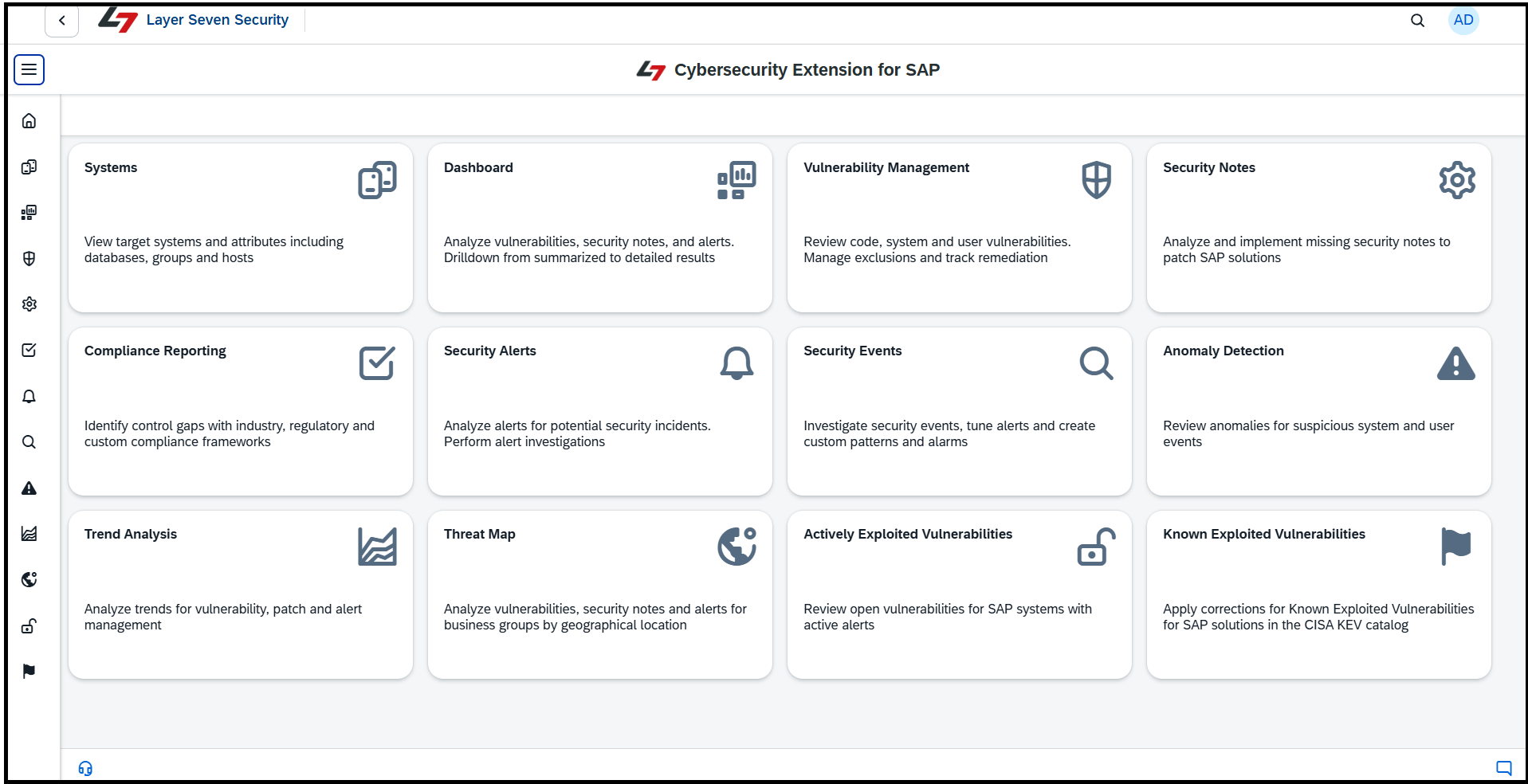
Click on the tile for the Cybersecurity Extension for SAP to launch the application and access the home screen below.